What Bates numbering is
Bates numbering gives every page in a set of documents a unique, sequential identifier — usually a short prefix followed by a zero-padded number, like ABC000001. Because the number continues across files, any page in a production can be referenced unambiguously.
The Bates Numbering tool stamps these numbers on every page of one or more PDFs, directly in your browser.
How to Bates number your PDFs
Step 1: Add the files
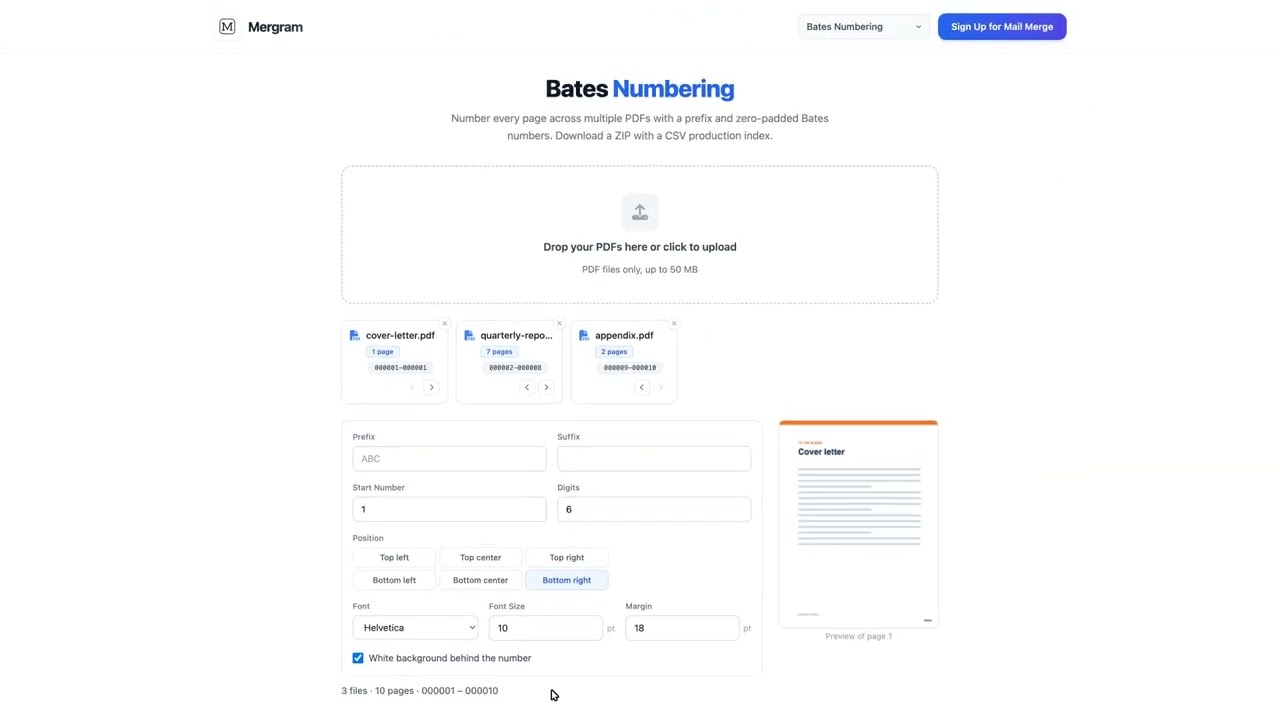
Open the Bates Numbering tool and drop your PDFs onto the upload area. Password-protected files are skipped with a message; the rest load normally.
Step 2: Put them in order
The numbers follow the order of the list. Drag the cards, or use the arrow buttons on each card, until the files are in production order. Each card shows the range it will receive, such as ABC000013–ABC000020, and the ranges update as you reorder.
Step 3: Choose the format
| Option | Choices | Default |
|---|---|---|
| Prefix | Any short text, e.g. ABC | blank |
| Suffix | Any short text | blank |
| Start number | 1 or higher | 1 |
| Digits | 1–12, zero-padded | 6 |
| Position | Top or bottom × left, center, right | Bottom right |
| Font | Helvetica, Courier, Times Roman, 6–24pt | Helvetica 10pt |
| White background | On or off | On |
The preview shows page 1 of the first file with the first number in place.
Step 4: Stamp and download
Click Stamp & Download ZIP. The ZIP contains every stamped PDF, with its name kept (unsafe characters replaced and duplicate names numbered), plus production-index.csv.
The production index
production-index.csv has one row per file with the file name, begin Bates number, end Bates number, and page count. It opens directly in Excel or Google Sheets.
Continuing a numbering sequence
To add documents to an earlier production, set Start number to one more than the last number you used and keep the same prefix and digits.
Tips
- Merge the pages of one document first with the PDF merger if they arrived as separate files.
- Keep the white background on for scanned pages so the number stays legible.
- If a prefix uses accented or non-Latin characters that the standard PDF fonts cannot print, the tool lists them before you stamp.
To label each document rather than number its pages, see how to add exhibit stickers to PDFs. For simple page numbers within one document, see how to add page numbers to a PDF.