Adding Page Numbers to PDF Documents
PDFs shared without page numbers are harder to reference in meetings, classrooms, and legal proceedings. “See page 14” doesn’t help if the pages aren’t numbered. The PDF Page Numbers tool adds page numbers to any PDF — directly in your browser, for free, with no signup and no file upload.
Why Add Page Numbers
| Scenario | Why It Matters |
|---|---|
| Business reports | Stakeholders reference specific findings by page |
| Legal documents | Courts and counsel require page-numbered filings |
| Academic papers | Instructors and reviewers cite by page number |
| Training manuals | Participants follow along during presentations |
| Multi-page contracts | Parties reference specific clauses by page |
When to add page numbers
Add page numbers as the final step after all editing is complete. If you plan to merge, split, or compress the PDF, do that first — then add page numbers to the final version.
How to Use the Page Numbers Tool
The PDF Page Numbers tool is free and runs entirely in your browser.
Step 1: Open the Tool
Go to mergram.com/tools/pdf-page-numbers. The page loads immediately — no account needed.
Step 2: Upload Your PDF
Drag and drop your PDF file onto the upload area, or click Browse to select it from your device. The tool reads the file locally and displays the file name and page count.
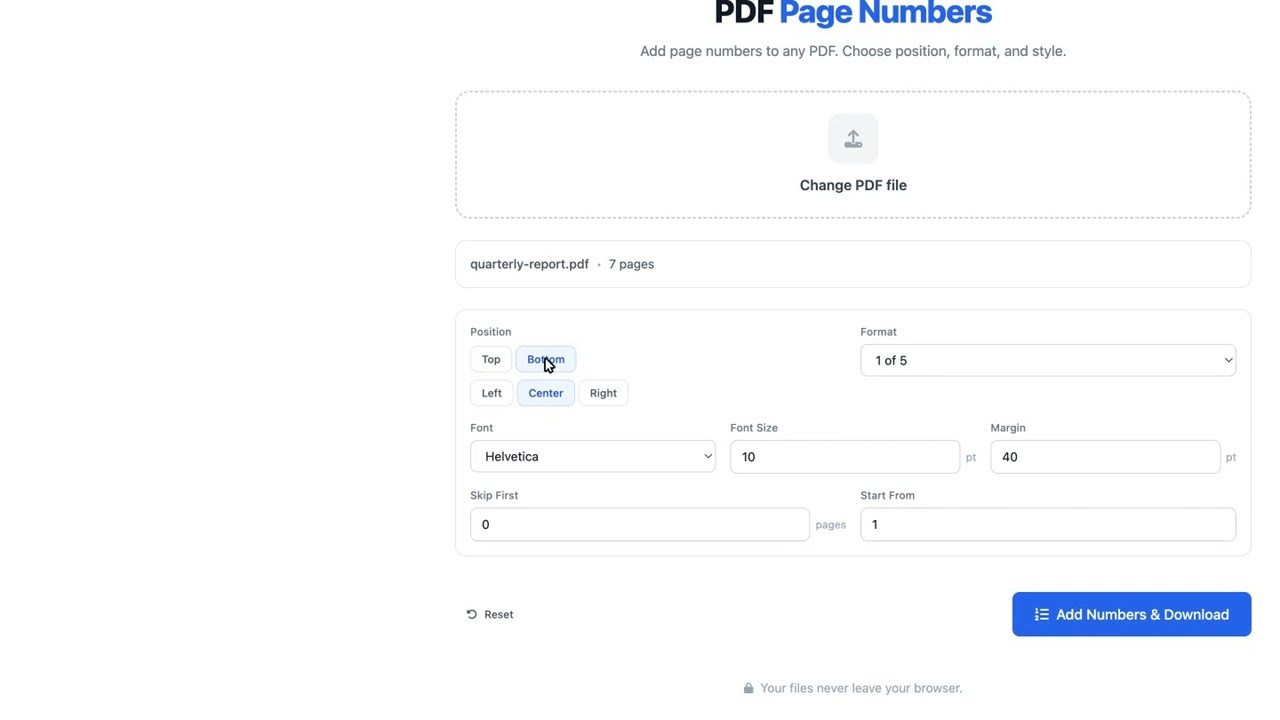
Step 3: Configure Page Numbers
Choose from these options:
| Option | Choices | Description |
|---|---|---|
| Position | Top or Bottom × Left, Center, or Right | Where the number appears on each page |
| Format | Page 1, 1 of 10, 1, - 1 -, Custom | How the number is displayed; custom format supports {n} and {total} placeholders |
| Font | Helvetica, Courier, Times Roman | Typeface for the page number text |
| Font size | 8–24pt (default 10pt) | Numeric input for size in points |
| Margin | 20–80pt (default 40pt) | Distance from the page edge in points |
| Start number | Any positive integer (1–999) | The number assigned to the first numbered page |
| Skip first | 0 to total pages | Number of leading pages to exclude from numbering |
Start with the defaults
The default settings (bottom-center, “1 of 10” format, 10pt Helvetica) work well for most documents. Adjust only if you have specific formatting requirements.
Step 4: Preview and Download
Click Add Numbers & Download. The tool processes your PDF in the browser and downloads the numbered file immediately. A result card shows how many pages were numbered (e.g., “5 of 6 pages numbered” if you skipped the first page). If the position or format doesn’t look right, click Number Another to start over with different settings, or click Download Again to save another copy.
Configuration Examples
Different documents benefit from different numbering styles:
Business Reports
- Position: Bottom-center
- Format: “1 of 10”
- Skip first: 1 (cover page)
- Start number: 1
Legal Filings
- Position: Bottom-center
- Format: “1”
- Skip first: 0
- Start number: 1
Academic Papers
- Position: Top-right
- Format: “1”
- Skip first: 1 (title page)
- Start number: 2
Multi-Volume Documents
- Position: Bottom-right
- Format: “Page 1”
- Skip first: 0
- Start number: 101 (if continuing from volume 1)
Numbering after a table of contents
If your document has a cover page and table of contents, set “Skip First” to the number of preliminary pages and start numbering at 1 on the first content page.
Position and Margin Details
Page numbers are placed relative to the page edges with configurable margins:
| Position | Horizontal Alignment | Vertical Placement |
|---|---|---|
| Top-left | Left-aligned | Near top edge |
| Top-center | Center-aligned | Near top edge |
| Top-right | Right-aligned | Near top edge |
| Bottom-left | Left-aligned | Near bottom edge |
| Bottom-center | Center-aligned | Near bottom edge |
| Bottom-right | Right-aligned | Near bottom edge |
Adjust the margin values if page numbers overlap with existing header or footer content in your document.
Tips for Better Results
- Check the first numbered file — Open the download and make sure the numbers don’t overlap existing content; if they do, click Number Another and adjust the margin or position
- Match your document’s style — Choose a font and size that complements the existing typography
- Number after merging — If you’re combining multiple PDFs, merge them first with the PDF Merger, then add page numbers to the combined file
- Use “Page X of Y” for small documents — The total count helps readers gauge document length
- Use plain numbers for long documents — “1 of 150” is less useful than simply “1” for long reports
Common Issues and Troubleshooting
Page numbers overlap with existing text: Adjust the margin settings to move the numbers further from the edge, or try a different position (top vs. bottom).
Numbers appear on the wrong pages: Check the “Skip First” setting and the “Start number” value. If you want numbering on all pages, make sure skip is disabled.
The font doesn’t match my document: The tool offers several standard fonts. Choose the one closest to your document’s typeface. For exact matching, consider editing the original document to add page numbers before exporting to PDF.
Large PDFs take a long time: Since processing happens entirely in your browser, very large PDFs (hundreds of pages) may take longer depending on your device. Be patient — the file is not being uploaded anywhere.
Browser-based processing
The tool processes PDFs entirely in your browser using JavaScript. For documents with hundreds of pages, processing time depends on your device’s performance. The file never leaves your computer — close the tab and the data is gone.
Get Started
Open the PDF Page Numbers tool, drop in your PDF, choose a format, and download. The whole process takes under a minute — no account, no upload, no waiting.