What is Word Mail Merge to PDF?
Word Mail Merge to PDF is the process of migrating your existing Word mail merge workflow to PDF-based mail merge. You keep the same concept — one template, many records, personalized output — but switch from Microsoft Word to Mergram’s browser-based PDF editor.
The result: better formatting consistency, new field types (images, barcodes, QR codes), built-in email delivery, and no dependency on Microsoft Office.
Why switch from Word mail merge?
- Formatting breaks across computers — Word documents render differently depending on the operating system, installed fonts, and Office version
- No dynamic images — Word mail merge cannot insert different images per record
- Email requires Outlook — Sending merged documents via email means depending on Outlook and desktop Outlook automation
- No barcode or QR code support — Word has no native barcode generation for mail merge
- No password protection — You cannot encrypt individual Word documents with per-recipient passwords
- Office dependency — Every person running the merge needs a Microsoft Word license
Who switches to PDF mail merge?
- HR teams — Moving from Word offer letters to PDF with dynamic signatures and photos
- Finance departments — Switching from Word invoices to PDF with barcode payment references
- Legal teams — Moving from Word contracts to encrypted PDFs with per-recipient passwords
- Operations teams — Replacing Word label templates with PDF barcodes for shipping and inventory
- Schools and universities — Switching from Word certificates to PDF with QR verification codes
How to Convert Word Mail Merge to PDF
Step 1 — Export Your Word Template as PDF
Open your existing Word mail merge template (.docx) and export it as a PDF:
- File → Save As → PDF (recommended — preserves all formatting)
- File → Print → Save as PDF (alternative method)
All fonts, layout, images, colors, and styling are preserved in the PDF. This becomes your new merge template.
Clean up first
Before exporting, remove the Word merge fields (e.g., «FirstName», «LastName») from the document. Replace them with blank spaces or placeholder text — you’ll place new fields visually in Mergram. This gives you precise control over positioning.
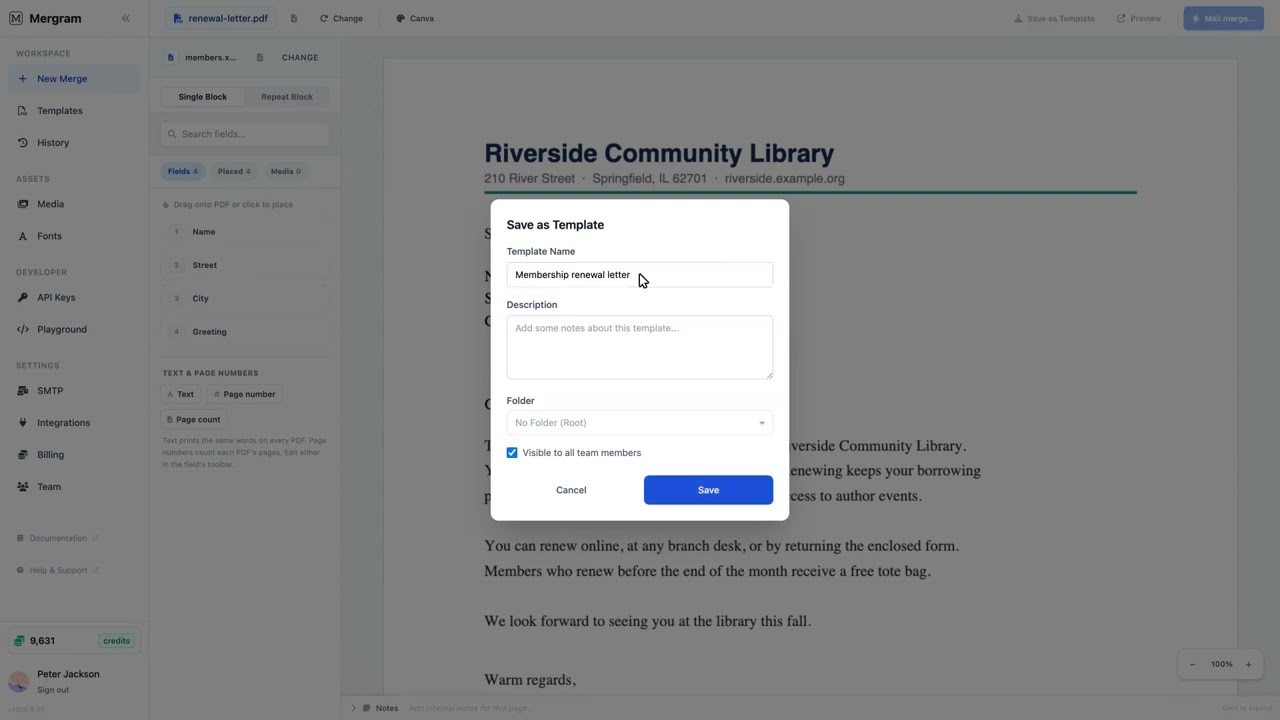
Step 2 — Upload the PDF to Mergram
Sign up at mergram.com/try (free) and upload your exported PDF. Mergram displays it in the visual editor where you can see every page.
Step 3 — Connect Your Data Source
Upload the same Excel or CSV file you used with Word mail merge. Your column headers and data work as-is — no reformatting needed. You can also connect a Google Sheet directly.
| What Word Uses | What Mergram Accepts | Changes Needed |
|---|---|---|
| Excel (.xlsx) | Excel (.xlsx, .xls, .ods) | None |
| CSV (.csv) | CSV (.csv, .tsv) | None |
| Outlook contacts | Any spreadsheet or Google Sheets | Export contacts to CSV first |
| Access database | Any spreadsheet format | Export to Excel or CSV first |
Step 4 — Place Fields Visually
Drag column headers from the sidebar onto the PDF pages. This is similar to Word’s approach, but with a visual canvas — you see exactly where each field appears on the actual PDF.
Choose how each field renders:
- Text — Names, addresses, amounts, dates (same as Word)
- Barcode — Shipping codes, product IDs (new — not in Word)
- QR code — Verification links, payment URLs (new — not in Word)
- Image — Photos, logos, signatures (new — not in Word)
Step 5 — Preview and Generate
Use the row selector to preview any row with real data — rendered in your browser, no server round-trip. Verify alignment and formatting, then generate:
- Individual PDFs — One file per row, packaged as ZIP (same as Word’s “Edit Individual Documents”)
- Combined PDF — All pages in one file (easier than Word’s “Merge to Printer”)
- Email delivery — Each PDF sent as an attachment via your SMTP server (no Outlook needed)
New Capabilities You Unlock
Switching from Word mail merge to Mergram’s PDF mail merge gives you features that Word cannot provide:
Dynamic Images
Insert different images per record — employee photos on ID cards, product images in catalogs, signatures on contracts. Upload images to a Media Album and reference them by filename in your spreadsheet.
Word mail merge has no equivalent feature. You would need to manually insert images or write complex VBA macros.
QR Codes and Barcodes
Generate scannable QR codes and barcodes directly from spreadsheet data. Place them anywhere on the template. Supports Code 128, EAN-13, UPC-A, Code 39, ITF-14, and Pharmacode barcode types.
Word requires third-party plugins or external barcode fonts for this.
Email Delivery Without Outlook
Send merged PDFs as personalized email attachments via any SMTP server — Gmail, SendGrid, Mailgun, Amazon SES, or your corporate mail server. No Outlook dependency.
Word mail merge email delivery is tied to Outlook and has reliability issues with large batches.
Per-Recipient Password Protection
Encrypt each PDF with a unique password derived from your data (e.g., [[lastName]]-[[birthYear]]). Each recipient can only open their own document.
Word has no per-document encryption for mail merge output.
Conditional Fields
Show or hide fields based on data values. Display a “VIP” badge only when tier equals premium, or show different terms based on region.
Word mail merge supports conditional text via IF fields, but the syntax is complex and error-prone. Mergram’s visual approach is simpler.
Custom Fonts with Full Unicode
Upload any .ttf, .otf, .woff, or .woff2 font file. Full Unicode and CJK character support — Chinese, Japanese, Korean, Arabic, Cyrillic, Vietnamese, and emoji render correctly in every merged document.
Word’s font handling depends on what’s installed on the machine running the merge. PDFs embed fonts, so output is consistent everywhere.
No Software Dependency
Mergram runs in your web browser. No Microsoft Office, no desktop software, no plugins. Works on Windows, macOS, Linux, and Chromebooks. Multiple team members can access templates and run merges from any device.
API Automation
Trigger merges programmatically via the REST API. Connect to Zapier, Make.com, or your own application. Automate invoice generation when a payment is received, or certificate creation when a course is completed.
Word mail merge has no API — it’s a manual, desktop-only process.
Feature comparison
The main limitation of PDF mail merge compared to Word is that PDF templates cannot be edited as easily as Word documents. Make sure your template’s static content (layout, branding, text) is finalized in your design tool before exporting to PDF. Dynamic content is handled by Mergram’s field placement.
Migration Checklist
Follow this checklist to move from Word mail merge to Mergram:
- Export each Word template as PDF (File → Save As → PDF)
- Remove Word merge fields from the template before exporting (optional but recommended)
- Upload the PDF to Mergram
- Upload your existing Excel or CSV data file (no changes needed)
- Place fields by dragging column headers onto the PDF
- Configure any new field types (barcodes, images, QR codes) that Word couldn’t handle
- Preview a few rows to verify placement and formatting
- Generate your first batch and compare output to your Word results
- Set up email delivery (if sending via SMTP instead of Outlook)
- Invite team members to share templates and run merges independently
Best Practices
- Design in your preferred tool — Use Word, Canva, Figma, InDesign, or Google Docs to create your template, then export as PDF
- Remove merge fields before exporting — Clean templates are easier to work with in Mergram’s visual editor
- Keep your existing data files — Your Excel and CSV files work as-is; no data migration needed
- Start with one template — Migrate your most-used template first, then expand to others
- Test with a small batch — Preview and generate a few rows before running large batches
- Use the new features — Take advantage of images, barcodes, and email delivery that Word couldn’t provide
- Save templates in Mergram — Store your templates with field placements for easy re-use, versioning, and team sharing
Get Started
Convert your Word mail merge to PDF in minutes. Export your template, upload it, and start merging with better features and no Office dependency.
Try Mergram free and migrate your first Word template today.