What is Barcode PDF Mail Merge?
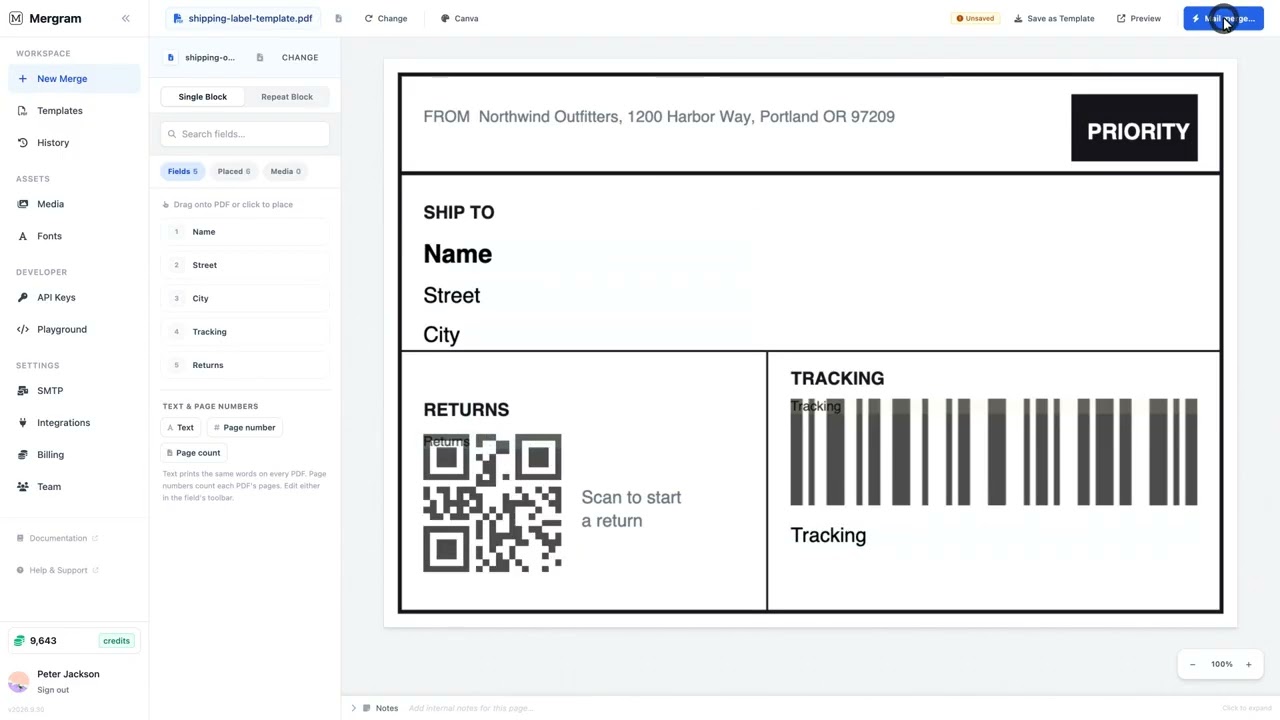
Barcode PDF mail merge lets you embed machine-readable barcodes into merged PDFs using data from your spreadsheet. Each row’s cell value is rendered as a barcode — no manual barcode generation or image handling required.
This is essential for shipping labels, product tags, inventory stickers, warehouse labels, and any document that needs scannable barcode identifiers. Upload your PDF template, connect your data, and every generated document includes the correct barcode for that record.
Who uses this?
- Shipping and logistics — Tracking numbers as Code 128 barcodes on labels and packing slips
- Retail and e-commerce — Product identifiers as EAN-13 or UPC-A barcodes on price tags
- Warehousing and inventory — Bin locations, SKU codes, and pallet IDs as Code 128 barcodes
- Manufacturing — Part numbers as Code 39 barcodes on work orders and inspection sheets
- Pharmaceutical — Packaging codes as Pharmacode barcodes on medication labels
- Distribution — Carton and container codes as ITF-14 barcodes on shipping containers
How to Add Barcodes to Merged PDFs
Step 1 — Prepare Your Barcode Data
Add a column to your spreadsheet containing the barcode values. Each symbology has specific format requirements:
| Symbology | Data Format | Example | Best For |
|---|---|---|---|
| Code 128 | Alphanumeric | INV-2025-0042 | General purpose — invoices, tracking IDs |
| EAN-13 | 12–13 digits | 5901234123457 | Retail products, ISBNs |
| UPC-A | 11–12 digits | 012345678905 | US retail products |
| Code 39 | Alphanumeric (uppercase + symbols) | PART-9921 | Industrial, automotive, military |
| ITF-14 | 13–14 digits | 15400141288763 | Shipping containers, cartons |
| Pharmacode | Number 3–131070 | 117480 | Pharmaceutical packaging |
Data validation
Each barcode symbology enforces strict data format rules. EAN-13 requires exactly 12 or 13 digits — letters or symbols will cause an error. Validate your data before merging, especially for numeric-only symbologies like EAN-13, UPC-A, and ITF-14.
Step 2 — Place a Barcode Field
Drag the barcode column from the sidebar onto your PDF canvas. Click the field and change its render type to Barcode.
Step 3 — Select a Symbology
Choose the barcode type from the field properties panel. Pick the symbology that matches your data format and scanning requirements.
Step 4 — Adjust Size and Position
Barcodes scale horizontally to cover the bounding box width. Height is controlled by the barcode height setting — not the bounding box height. The bounding box controls placement (position) and horizontal sizing.
Sizing tip
For reliable scanning, ensure barcodes are wide enough for your scanner to read. A minimum bounding box width of 1.5–2 inches (approximately 108–144 PDF points) is recommended for Code 128 barcodes. Test with your actual scanner hardware.
Step 5 — Preview and Generate
Use the row selector to preview barcodes with real data. Verify that each value renders correctly and the barcode is scannable at the output size. Then generate your merged PDFs.
Symbology Details
Code 128 — General Purpose
The most versatile barcode type. Supports the full ASCII character set — letters, numbers, and symbols. Ideal for invoice numbers, tracking IDs, order references, and any alphanumeric identifier.
Data format: Any alphanumeric string (e.g., INV-2025-0042, ORD-9921-A, PKG20250115)
Common uses: Invoice numbers, package tracking codes, internal reference IDs, serial numbers
EAN-13 — Retail Products
The global standard for retail product barcodes. Used on consumer goods, books (as ISBN barcodes), and point-of-sale systems worldwide.
Data format: 12 digits (check digit auto-calculated) or 13 digits (including check digit)
Common uses: Product packaging, price labels, book ISBNs, grocery items
UPC-A — US Retail Products
The primary barcode standard for retail products in the United States. Functionally similar to EAN-13 but specifically for the North American market.
Data format: 11 digits (check digit auto-calculated) or 12 digits (including check digit)
Common uses: US retail products, POS scanning, inventory management
Code 39 — Industrial
Widely used in automotive, defense, and industrial manufacturing. Supports uppercase letters, digits, and a limited set of symbols (-, ., $, /, +, %, space).
Data format: Uppercase alphanumeric with limited symbols (e.g., PART-9921, LOT-2025-A)
Common uses: Part numbers, work orders, inventory labels, automotive parts
ITF-14 — Shipping Containers
Designed for marking cartons, cases, and shipping containers in the supply chain. Encodes 14-digit Global Trade Item Numbers (GTIN-14).
Data format: 13 digits (check digit auto-calculated) or 14 digits (including check digit)
Common uses: Shipping containers, outer cartons, warehouse pallet labels, logistics
Pharmacode — Pharmaceutical
Used specifically in the pharmaceutical industry for packaging identification. Encodes a single numeric value.
Data format: Integer between 3 and 131070
Common uses: Medication packaging, pharmaceutical labeling, drug identification
Common Use Cases
Shipping Labels
Generate shipping labels with Code 128 tracking barcodes. Your spreadsheet has columns for recipient name, address, and tracking number. Each label includes a scannable barcode that couriers can scan at every transit point.
Product Price Tags
Create retail price tags with EAN-13 or UPC-A barcodes. Your product spreadsheet includes SKU, price, product name, and barcode number. Generate individual tags for each product — ready to print and attach to shelves.
Inventory and Warehouse Labels
Print bin labels, pallet tags, and location stickers with Code 128 barcodes. Include item descriptions and quantities alongside the barcode for human-readable reference.
Work Orders and Inspection Sheets
Embed Code 39 barcodes on manufacturing work orders. Workers scan the barcode to pull up the correct order details in your ERP or MES system.
Best Practices
- Validate data before merging — Ensure all barcode values match the required format for your chosen symbology
- Include human-readable text — Place a text field next to the barcode showing the same value, so it can be read manually if scanning fails
- Test at actual print size — Preview barcodes at the size they’ll be printed; narrow barcodes may not scan reliably
- Use the right symbology — Match the barcode type to your industry and scanner hardware
- Keep values consistent — Avoid leading/trailing spaces or invisible characters in your spreadsheet data
- Leave quiet zones — Ensure adequate white space around the barcode bounding box for reliable scanning (typically 10x the narrow bar width on each side)
Get Started
Add scannable barcodes to your merged PDFs in minutes. Upload a template, connect your spreadsheet, and generate labeled documents with embedded barcodes.
For a comprehensive guide covering all supported barcode types, data validation rules, sizing guidelines, and troubleshooting, see How to Add Barcodes to PDF Documents.
Try Mergram free and create your first barcode mail merge today.