One sheet in, one PDF per buyer out
Sales teams, wholesalers, and distributors keep product data in one big spreadsheet, but buyers need their own document: their products, their prices, their name on the cover. Building those by hand means copy-pasting rows into a new file for every customer.
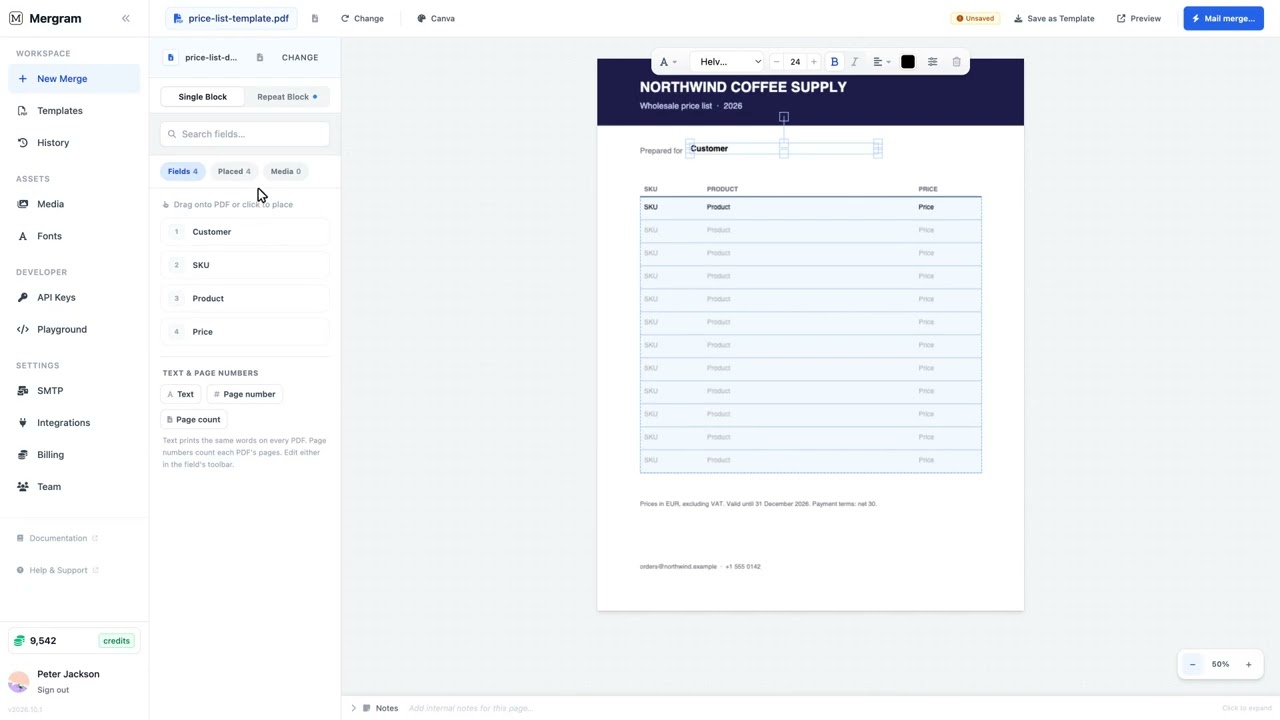
Mergram’s repeat block does it in one merge. You design the layout of a single product, pick the column that identifies the customer, and Mergram produces one PDF per customer with every one of their products laid out in a table or grid.
One product sheet + one template = a personalized price list for every buyer.
Who uses this?
- Wholesalers and distributors — Customer-specific price lists with negotiated prices
- Fashion and consumer brands — Seasonal line sheets per retailer
- Manufacturers — Dealer price books with SKUs and product photos
- Sales reps — Quote packs and product summaries per account
- Restaurants and suppliers — Weekly availability and price sheets per client
How it works
Step 1 — Prepare your data
Use one row per product per customer:
| Customer | SKU | Product | Price | Image |
|---|---|---|---|---|
| Café Lumière | CF-001 | House blend, 1 kg | €18.50 | house-blend.png |
| Café Lumière | CF-014 | Oat milk, 6 × 1 L | €11.20 | oat-milk.png |
| Green Grocer | CF-001 | House blend, 1 kg | €17.90 | house-blend.png |
Rows for the same customer don’t need to be next to each other — Mergram groups them by value.
Step 2 — Add a repeat block and design one slot
Open the Repeat Block tab in the sidebar, click Add repeat block, and size the block over your product area. Choose a list (1 column × 12 rows) or a catalogue grid (3 columns × 4 rows). Then drag Product, SKU, Price, and Image into the first slot.
Cover and terms pages
Put the customer name and a greeting on a cover page, and your terms on a last page. Pages before and after the block page appear once per PDF, filled from the customer’s first row.
Step 3 — Group by customer
In the One PDF per bar, choose Customer. The readout shows exactly what you’ll get, for example 1,200 rows → 40 documents · 40 credits.
Step 4 — Preview and merge
Preview renders the first customer’s price list, overflow pages included. When it looks right, merge and download one PDF per buyer as a ZIP, or combine all price lists into one file for printing.
Long product lists
When a customer has more products than fit in the block, Mergram repeats the block page and continues the list. Fields outside the block, such as a page header, can appear on every copy, only the first, or only the last.
Good to know
- Billing — One credit per PDF, not per product row.
- Filenames — Use a filename template like
Price_List_[[Customer]]to name each file after the buyer. - Slot height — In a grid, keep product names short enough to fit their slot; long text isn’t clipped. A one-column list can use Grow to fit text instead.
- Totals and page numbers — Add a product count, a sum of a column, or “Page 2 of 3” when you need them.
- Email — Send each buyer their price list from the Send Emails tab: one email per customer, with their PDF attached.
Get started
Upload your price list template and product sheet, add a repeat block, and merge your first batch in minutes. Start at mergram.com/try — no credit card required.