Complete Guide: Converting a Word Mail Merge Template to PDF
If you have an existing Word mail merge template — letters, invoices, contracts, certificates, or any other document — you can convert it to a PDF template and generate personalized documents with Mergram. This guide walks you through the entire process.
The migration is straightforward: export your Word template as PDF, upload it to Mergram along with your spreadsheet, place data fields visually, and generate. Your existing data files work as-is.
Before You Start
What you need
- A Word mail merge template (
.docx) — the document you currently use for mail merge - Your data file — the same Excel (
.xlsx,.xls) or CSV (.csv) file you’ve been using with Word - A free Mergram account (no credit card required)
What you don’t need
- Microsoft Word (after exporting the template)
- Microsoft Outlook or any email client
- Any desktop software or plugins
Your data file stays the same
You do not need to change your spreadsheet. The same Excel or CSV file you use with Word mail merge works directly with Mergram — same columns, same rows, same format.
Step 1 — Prepare Your Word Template
Open your .docx mail merge template in Microsoft Word. Before exporting to PDF, make these adjustments:
Remove merge fields
Delete all Word merge fields («FirstName», «LastName», «Address», etc.) from the document. You’ll replace them with Mergram’s visual field placement in a later step.
- Windows: Select each field and press
Delete. Or use Find & Replace (Ctrl+H) to search for merge field codes. - macOS: Same process — select and delete, or use Find & Replace (
Cmd+Shift+H).
Keep all static content
Leave everything that doesn’t change between documents:
- Company logos and letterheads
- Headers and footers
- Static text (terms, conditions, legal clauses)
- Tables, borders, and decorative elements
- Background colors and watermarks
Verify the layout
Scroll through the entire document and confirm:
- All static content is in place
- No leftover merge fields remain
- Page breaks are correct
- Margins and spacing look right
Design freedom
You’re not limited to Word for designing templates. Use Canva, Google Docs, InDesign, or any tool you prefer. Export as PDF, then upload to Mergram. The editor shows your template exactly as the final output will appear.
Step 2 — Export as PDF
Export your Word document as a PDF file:
- Windows: File → Export → Create PDF/XPS Document
- macOS: File → Save As → Format: PDF
The PDF preserves your layout exactly — fonts, images, tables, headers, footers, and spacing are locked in. This PDF becomes your merge template.
PDF is the final format
Unlike Word mail merge (which produces .docx files that then need manual PDF conversion), Mergram generates PDF output directly. Your template is already in the correct format — no conversion step needed at merge time.
Step 3 — Upload to Mergram
- Go to Mergram’s editor and sign in
- Click Upload PDF and select the PDF you exported
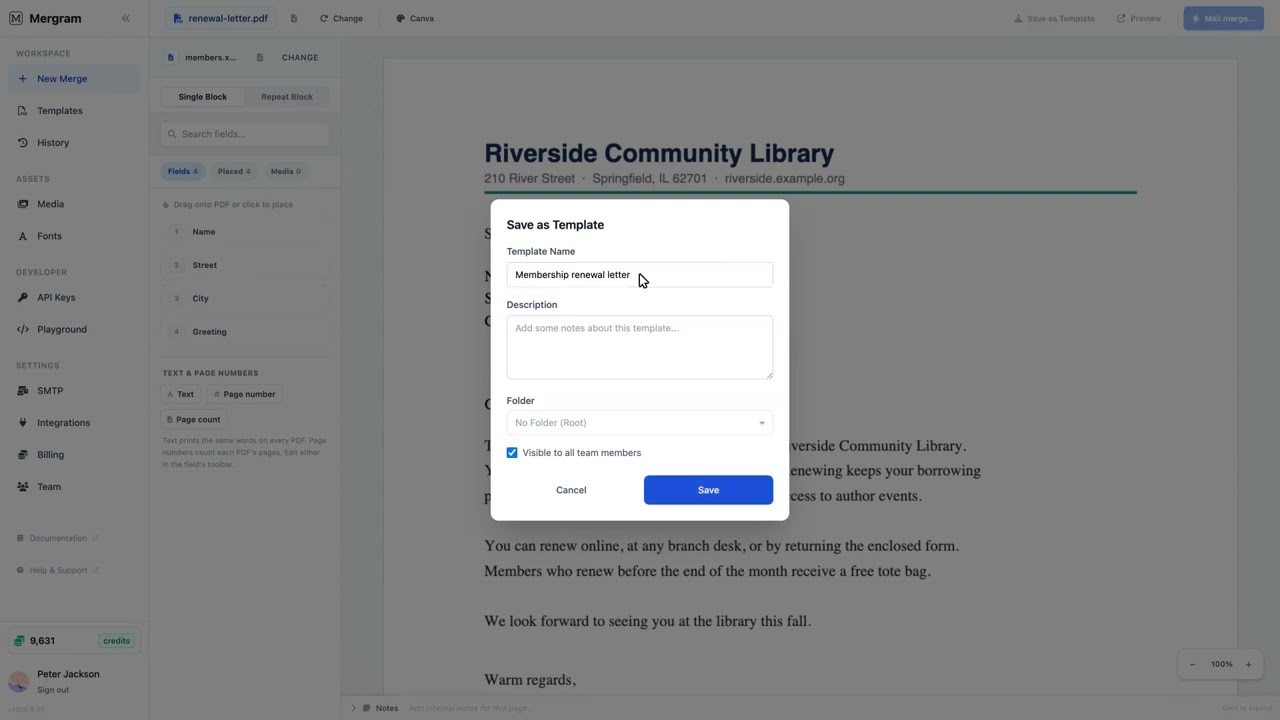
- The editor displays your template with accurate rendering — this is exactly what the final output looks like
For multi-page templates, all pages are loaded and available for field placement.
Step 4 — Upload Your Data
Upload the same spreadsheet you’ve been using with Word mail merge:
- Click Upload Excel in the data sidebar
- Select your
.xlsx,.xls,.ods, or.csvfile - Mergram reads the first row as column headers and displays them in the sidebar
| Format | Extension | Notes |
|---|---|---|
| Excel | .xlsx, .xls, .ods | Multi-sheet workbooks — select the correct tab |
| CSV | .csv, .tsv | Comma, semicolon, or tab delimiters |
| Google Sheets | Live connection | Pull latest data on every merge |
Google Sheets alternative
If your data lives in Google Sheets, connect it directly — no file download needed. Select any spreadsheet from your Google Drive and choose the worksheet tab. The data refreshes automatically on each merge.
Step 5 — Place Data Fields
Drag column headers from the sidebar directly onto your PDF pages. This replaces Word’s merge field insertion with a visual, drag-and-drop editor.
Field placement
- Drag a column header from the sidebar onto the page to create a field
- Position the field by dragging it to the exact location
- Resize by dragging the corners or edges
- Configure by selecting the field and adjusting properties
Field types
Each field can render data in different ways:
| Type | Use For | Example |
|---|---|---|
| Text | Names, addresses, amounts, dates, any text | John Smith, $1,250.00 |
| QR Code | URLs, verification links, unique IDs | https://example.com/verify/12345 |
| Barcode | Order IDs, SKUs, tracking numbers | ORD-2025-00421 |
| Image | Photos, logos, product images | john_photo.jpg |
Word can't do images, QR, or barcodes
These three field types are not available in Word mail merge. They’re built into Mergram — no plugins or add-ons needed. Add a QR code for document verification, a barcode for warehouse scanning, or a photo for personalized ID cards.
Field styling
Select any text field to configure:
- Font family — Choose from built-in fonts or upload custom fonts (
.ttf,.otf,.woff,.woff2) - Font size — Set exact size in points
- Color — Any color via color picker
- Alignment — Left, center, right
- Rotation — Angle the text at any degree
Multi-page support
For multi-page templates, navigate between pages and place fields on any page. Each page is rendered with the correct data for the current row.
Step 6 — Preview & Verify
Before generating the full batch, preview individual records:
- Use the row selector to pick any row from your spreadsheet
- The editor renders the merged output in real time — directly in your browser
- Check alignment, text overflow, font sizes, and data accuracy
- Switch between rows to verify different data lengths and formats
Preview before you merge
Always preview a few rows before generating the full batch — especially the longest and shortest data values. This helps you spot text overflow or layout issues early.
Step 7 — Generate Your Documents
When you’re satisfied with the preview, choose your output:
Individual PDFs (ZIP download)
Each row generates a separate PDF. All files are packaged as a ZIP download. Ideal for distributing individual documents to different recipients or departments.
Combined PDF
All rows are concatenated into a single PDF document. Useful when you need one file containing all records — for example, a packet of signed contracts or a batch of certificates.
Email delivery
Each PDF is sent as a personalized email attachment. Connect your SMTP server and configure:
- Subject line — Use merge fields (e.g.,
Your Invoice #[[InvoiceNumber]]) - Email body — Rich text with merge field support
- Attachments — Each recipient’s PDF is attached automatically
Supported SMTP providers:
| Provider | Typical Use |
|---|---|
| Gmail | Small teams, testing |
| SendGrid | High-volume transactional email |
| Mailgun | Developer-friendly, API-based |
| Amazon SES | Cost-effective at scale |
| Any custom SMTP | Self-hosted mail servers |
Word mail merge email vs Mergram email
Word’s email merge requires Outlook and a MAPI profile configured on the same machine. It’s fragile and doesn’t work on servers or shared machines. Mergram connects directly to any SMTP server via the cloud — no Outlook, no desktop dependency.
Advanced Features
Per-recipient password protection
Encrypt each generated PDF with a unique password derived from your data:
- Template pattern:
[[lastName]]-[[birthYear]] - Result for John Smith (born 1985): password is
Smith-1985 - Uses RC4 128-bit encryption compatible with all PDF readers
Custom filename templates
Control the output filename for each PDF:
- Template pattern:
Invoice_[[InvoiceNumber]]_[[ClientName]].pdf - Result:
Invoice_00421_AcmeCorp.pdf
Google Sheets live data
Instead of uploading a file, connect a Google Sheet directly. The data refreshes on every merge — no re-uploading updated spreadsheets.
Troubleshooting Common Migration Issues
Layout looks different in the PDF than in Word: This is a font rendering difference. Word uses screen rendering which differs from PDF rendering. The PDF version is the accurate one — it will look the same for every recipient. If the difference is significant, adjust spacing in Word and re-export.
Text overflows the field box: Increase the field box size in Mergram’s editor, or reduce the font size. The real-time preview shows overflow — use it to find the right dimensions before generating.
Special characters not rendering correctly: Make sure your CSV file uses UTF-8 encoding. Excel files (.xlsx) handle Unicode natively. If you see garbled text, re-save your CSV with UTF-8 encoding.
Multi-sheet Excel file loads the wrong tab: Use the sheet picker in the data sidebar to select the correct worksheet tab.
Old Word template uses mail merge rules (IF, SKIP, NEXT): Mergram doesn’t replicate Word’s merge rules. Instead, use spreadsheet formulas to pre-compute conditional values in a dedicated column. For example, =IF(C2="Premium", "Premium Member", "") in a column, then map that column to a field.
Word merge rules are not supported
Word mail merge supports rule fields like IF, SKIP, NEXT, and FILLIN. These are Word-specific features with no direct equivalent in PDF mail merge. Pre-compute all conditional logic in your spreadsheet before uploading.
Get Started
Upload your exported PDF template and spreadsheet to Mergram’s editor to start generating personalized documents. The free plan lets you test the full workflow — place fields, preview, and generate small batches. Upgrade when you’re ready for high-volume processing.