Why Switch from Word Mail Merge?
Microsoft Word mail merge has been the default for bulk document generation since the 1990s. It works — but it was designed for printed letters in an era before PDF became the universal document standard. If you’re still using Word mail merge, you’ve probably run into these problems:
- Formatting breaks across computers — fonts shift, tables misalign, page breaks land in different places
- No dynamic images — you can’t insert per-recipient photos, logos, or product images
- No QR codes or barcodes — impossible in Word without third-party plugins
- Email delivery is unreliable — Word depends on Outlook and desktop MAPI, which breaks in modern environments
- No password protection — you can’t encrypt individual PDFs per recipient
- Performance degrades — Word struggles with datasets above a few thousand rows
- Output depends on the viewer — Word documents render differently in Google Docs, LibreOffice, and mobile apps
PDF mail merge solves all of these. Your template renders identically everywhere, and the output format is already what most businesses need for distribution, archiving, and compliance.
How Word Mail Merge Works (And Where It Falls Short)
Traditional Word mail merge follows this flow:
- Create a Word template with merge fields (
«FirstName»,«LastName») - Connect an Excel or CSV data source
- Generate merged Word documents (or attempt to email via Outlook)
- Optionally export to PDF — one at a time, or with a macro
The last step is the problem. If your final format is PDF (and for most business documents, it is), Word mail merge adds an unnecessary layer: you design in Word, merge in Word, then convert to PDF — hoping the conversion doesn’t break the layout.
The PDF conversion gamble
Every time you convert a Word document to PDF, the result depends on the installed fonts, the printer driver, and the version of Word. The same .docx file can produce different PDFs on different machines. PDF mail merge eliminates this entirely — your template is already a PDF.
The PDF Mail Merge Workflow
With Mergram, the workflow is simpler and more capable:
- Design your template in any tool (Word, Canva, Google Docs, InDesign) and export as PDF
- Upload the PDF template + your spreadsheet (Excel, CSV, or Google Sheets)
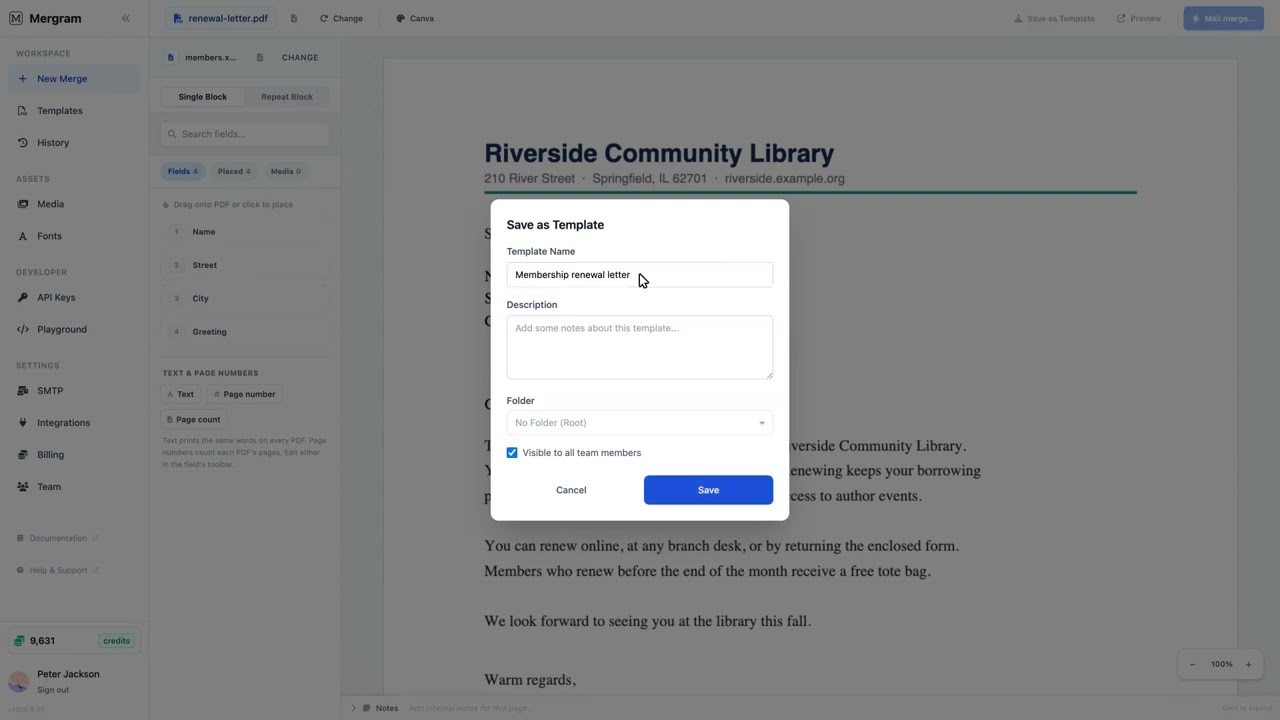
- Place fields visually by dragging column headers onto the page
- Preview any row in real time, rendered in your browser
- Generate — individual PDFs, combined PDF, or email delivery
No Word required after export. No Outlook dependency. No layout uncertainty.
Step-by-Step: Migrating from Word to PDF Mail Merge
Step 1 — Export Your Word Template as PDF
Open your existing .docx mail merge template in Word. Remove the merge fields («FirstName», etc.) — you’ll replace them with Mergram’s visual field placement.
Export as PDF:
- Windows: File → Export → Create PDF/XPS Document
- macOS: File → Save As → Format: PDF
Keep it clean
Remove all Word merge fields before exporting. You’ll place new fields in Mergram’s visual editor, which gives you pixel-accurate positioning on the actual PDF layout. Leave static content (logos, headers, borders, legal text) as-is.
Step 2 — Upload Your PDF Template
Go to Mergram’s editor and upload the exported PDF. The editor displays your template exactly as it will appear in the final output — no surprises.
Step 3 — Upload Your Data
Upload the same Excel or CSV file you were using with Word mail merge. Mergram reads column headers from the first row and treats each subsequent row as one record. Supports:
| Format | Extension | Notes |
|---|---|---|
| Excel | .xlsx, .xls, .ods | Multi-sheet workbooks supported |
| CSV | .csv, .tsv | Comma, semicolon, or tab delimiters |
| Google Sheets | Live connection | Always pulls the latest data |
Step 4 — Place Data Fields
Drag column headers from the sidebar directly onto your PDF pages. Each field becomes a positioned box you can resize, align, and configure:
- Text fields — Names, addresses, dates, amounts, any text data
- QR codes — URLs, IDs, verification codes — each document gets a unique code
- Barcodes — Code 128, EAN-13, UPC-A for shipping labels, order IDs, inventory tags
- Image fields — Per-recipient photos, product images, logos, ID photos
Word can't do this
Dynamic images, QR codes, and barcodes are not possible in standard Word mail merge. These features are built into Mergram’s editor — just drag and configure.
Step 5 — Preview & Generate
Use the row selector to preview any individual record in real time — rendered directly in your browser. Check alignment, verify data, and confirm formatting before committing.
When you’re ready, choose your output:
| Output | Description |
|---|---|
| Individual PDFs | One file per row, packaged as a ZIP download |
| Combined PDF | All pages concatenated into a single document |
| Email delivery | Each PDF sent as a personalized email attachment via your SMTP server |
What You Gain by Switching
Layout Consistency
PDFs render identically on every device, OS, and viewer. Your template looks the same for every recipient — no font substitution, no table shifting, no page break surprises.
Dynamic Images
Insert per-recipient photos, company logos, or product images directly from your data. Upload images to Media Albums, reference them by filename in your spreadsheet, and Mergram places them automatically.
QR Codes & Barcodes
Embed unique QR codes (URLs, verification links) and barcodes (order IDs, SKUs, tracking numbers) directly in each document. Configure size, position, and data source per field.
Email Delivery
Connect any SMTP server — Gmail, SendGrid, Mailgun, Amazon SES, or your own mail server. Each recipient gets a personalized email with their PDF attached. Customize the subject line and body with merge fields.
Word's email limitation
Word mail merge email requires Outlook and a MAPI-compatible email client. It doesn’t work with web-based email, and it’s unreliable on machines without a properly configured Outlook profile. Mergram’s email delivery works everywhere — it connects directly to your SMTP server via the cloud.
PDF Encryption
Password-protect each generated PDF with a unique password derived from your data (e.g., [[lastName]]-[[birthYear]]). Uses RC4 128-bit encryption compatible with all PDF readers. Word mail merge has no equivalent feature.
High-Volume Processing
Process up to 100,000 rows in a single job with background workers and real-time progress tracking. Word mail merge typically slows down or crashes with large datasets.
No Installation Required
Mergram runs entirely in your browser. No Word license, no desktop software, no plugins. Upload files, place fields, preview, and generate from any computer.
Feature Comparison
| Feature | Word Mail Merge | PDF Mail Merge (Mergram) |
|---|---|---|
| Template format | .docx | .pdf (from any source) |
| Data sources | Excel, CSV, Outlook contacts | Excel, CSV, Google Sheets, REST API |
| Output format | .docx, then manual PDF export | .pdf (native) |
| Dynamic images | Not supported | Supported — photos, logos, product images |
| QR codes | Not supported | Supported — dynamic per-recipient |
| Barcodes | Not supported (requires plugin) | Built-in — Code 128, EAN-13, UPC-A |
| Email delivery | Outlook + MAPI only | Any SMTP server |
| Password protection | Not supported | Per-recipient, data-derived passwords |
| Volume limit | ~1,000 rows before instability | Up to 100,000 rows per job |
| Layout consistency | Varies by machine, OS, Word version | Pixel-perfect, identical everywhere |
| Custom fonts | System fonts only | Upload any .ttf, .otf, .woff, .woff2 |
| API access | None | Full REST API with API keys |
| Software required | Microsoft Word + Outlook | Browser only |
| Cross-platform | Windows, macOS (with Office) | Any device with a browser |
Common Migration Questions
”My Word template uses complex formatting — will it survive?”
Yes. Export your Word document as PDF and the formatting is locked in — tables, columns, images, headers, footers, and custom typography are all preserved. Mergram’s visual editor shows you exactly what the final output looks like.
”Can I still use my Excel data?”
Absolutely. Upload the same .xlsx or .csv file you’ve been using with Word. Column headers, data rows, and formatting are read the same way.
”What about merge rules and conditional text?”
Mergram places the exact value from each spreadsheet cell. For conditional content, use spreadsheet formulas to pre-compute the values (e.g., =IF(A2>100, "Premium", "Standard")) in a dedicated column, then map that column to a field.
”How do I handle multi-page templates?”
Mergram supports multi-page PDFs natively. Place fields on any page of your template — each page is rendered with the correct data for that row.
Tips for a Smooth Migration
- Start with one template — Pick your most-used mail merge template, export it as PDF, and set it up in Mergram. Validate the output matches your expectations before migrating others.
- Test with 5–10 rows — Run a small batch first. Check alignment, data accuracy, and formatting. It’s faster to fix issues on a small test than a 10,000-row production run.
- Use the preview — Mergram’s real-time preview renders each row in your browser. Use it to spot-check before generating the full batch.
- Keep your spreadsheet — Your data doesn’t change. The same Excel or CSV file works with both Word and Mergram.
- Explore new features — Once migrated, try adding a QR code, a dynamic image, or email delivery. These aren’t possible in Word mail merge.
Try it free
Start with the free demo — no sign-up required. Upload a sample PDF and spreadsheet, drag fields onto the page, and see merged output in seconds. When you’re ready for larger batches, create a free account.