Adding Barcodes to Merged PDF Documents
Barcodes turn your merged documents into machine-readable records — perfect for shipping labels, product tags, inventory tags, and asset tracking. With Mergram, you can generate barcodes directly from spreadsheet data and embed them into each merged PDF. For a quick-start guide to adding barcodes to your mail merge, see Barcode PDF Mail Merge.
Prerequisites
To add barcodes to your merged PDFs, you need:
- A PDF template uploaded to Mergram
- A spreadsheet with a column containing barcode-compatible data
- Knowledge of which barcode type suits your use case
Barcodes vs. QR codes
Barcodes (1D, linear) store short numeric or alphanumeric codes as parallel lines. QR codes (2D) store much more data including URLs, text, and structured information. Use barcodes for simple IDs and product codes. Use QR codes when you need to embed URLs or complex data. See the comparison table below for details.
Supported Barcode Types
Mergram supports a wide range of barcode symbologies for different industries and use cases:
| Barcode Type | Data Format | Max Length | Common Use |
|---|---|---|---|
| Code 128 | ASCII text (letters, numbers, symbols) | ~80 chars | Shipping, logistics, general purpose |
| Code 39 | Uppercase letters, numbers, symbols | ~43 chars | Automotive, defense, healthcare |
| EAN-13 | 12 or 13 digits | 13 digits | Retail products, ISBNs |
| EAN-8 | 7 or 8 digits | 8 digits | Small retail products |
| UPC | 11 or 12 digits | 12 digits | US/Canada retail products |
| EAN-5 | 5 digits | 5 digits | Supplemental add-on for EAN/UPC |
| EAN-2 | 2 digits | 2 digits | Supplemental add-on for EAN/UPC |
| ITF | Even number of digits | ~14 digits | Shipping containers, cartons, warehousing |
| MSI | Digits only | ~11 digits | Warehouse shelves, inventory |
| Pharmacode | Number (3–131,070) | Single number | Pharmaceutical packaging |
| Codabar | Digits + symbols (-$:/.+) | ~20 chars | Libraries, blood banks, FedEx |
When in doubt, use Code 128
Code 128 is the most versatile barcode type. It accepts any combination of letters, numbers, and symbols. Use it for tracking numbers, serial numbers, and internal IDs. It’s the default choice for logistics and shipping.
Choosing the Right Barcode Type
For Shipping and Logistics
Use Code 128 for tracking numbers and shipping IDs. Most carriers (UPS, FedEx, DHL, USPS) use Code 128 for their tracking barcodes.
For Retail Products
Use EAN-13 for products sold internationally or UPC for products sold in the US and Canada. These barcodes must be registered with GS1.
For Inventory and Warehouses
Use Code 128 for general inventory tags or ITF for outer cartons and shipping containers.
For Pharmaceuticals
Use Pharmacode for pharmaceutical packaging — it encodes a single number and is the standard for the industry.
Barcodes vs. QR Codes
Choose the right 1D/2D code for your use case:
| Feature | Barcodes (1D) | QR Codes (2D) |
|---|---|---|
| Data capacity | Up to ~80 characters | Up to ~4,000 characters |
| Data types | Numbers, some text | Text, URLs, vCards, WiFi |
| Scan direction | Horizontal only | Any angle |
| Print space | Needs horizontal width | Square, compact |
| Error correction | Minimal | Built-in (survives damage) |
| Best for | Product IDs, tracking numbers | URLs, complex data, verification |
| Common use | Shipping, retail, inventory | Marketing, tickets, certificates |
Use barcodes when you need simple, standardized product or tracking codes. Use QR codes when you want recipients to open a URL or access digital content.
Preparing Your Spreadsheet
Add a dedicated column for barcode values. Ensure the data matches the format requirements of your chosen barcode type:
| Product | SKU | BarcodeValue | BarcodeType |
|---|---|---|---|
| Widget A | SKU-001 | 123456789012 | EAN-13 |
| Widget B | SKU-002 | 123456789013 | EAN-13 |
| Gadget C | SKU-003 | TRK-2025-001 | Code 128 |
| Gadget D | SKU-004 | TRK-2025-002 | Code 128 |
Validate barcode data before merging
Check that your values match the format requirements. EAN-13 needs exactly 12 or 13 digits — letters will cause errors. Code 128 is the most forgiving and accepts any text. Use Excel’s data validation feature to enforce format rules in your spreadsheet.
Placing Barcode Fields on the Canvas
- Select the column — Click the barcode data column in the data fields panel
- Set render type — Change from “Text” to “Barcode” in the field properties
- Position on canvas — Drag the barcode bounding box to the desired location
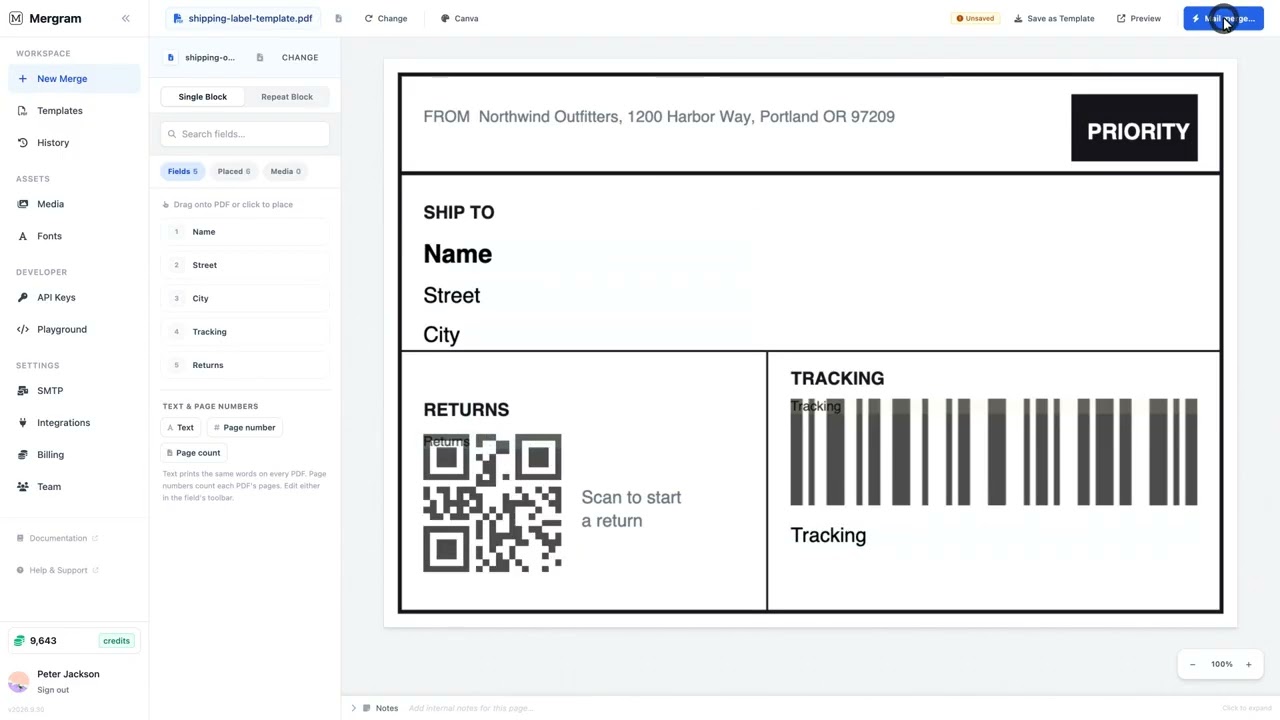
- Resize — Barcodes scale to fill the bounding box width. Drag the bounding box wider or narrower to control the barcode width. Use the height and margin settings in the toolbar to control vertical dimensions
- Add human-readable text — If you want the barcode value displayed below the barcode as text, add a separate text field with the same column next to the barcode field
Sizing Guidelines for Scannable Barcodes
Barcodes that are too small or narrow won’t scan reliably. Follow these guidelines:
| Guideline | Recommendation |
|---|---|
| Minimum width | At least 1.5 inches (4cm) for Code 128 |
| Minimum height | At least 0.5 inches (1.3cm) |
| Quiet zone | Leave 0.25 inches (6mm) of white space on each side |
| Print resolution | 300 DPI minimum for crisp barcode lines |
| Background | White or light-colored background only |
| Foreground | Black or very dark color for maximum contrast |
Barcodes scale to bounding box width
Barcodes scale to fill the bounding box width on the canvas. Drag the bounding box wider for a wider barcode, narrower for a compact one. The height setting in the toolbar controls how tall the bars are. You can add a margin for padding around the barcode.
Real-World Use Cases
Shipping Labels with Barcodes
Create shipping labels with a Code 128 barcode for the tracking number. Pair it with text fields for the recipient address, sender address, and weight.
Product Tags
Generate product tags with EAN-13 barcodes from your product catalog spreadsheet. Include product name, price, and SKU as text fields alongside the barcode.
Asset Tags
Create equipment asset tags with Code 128 barcodes for asset IDs. Add fields for department, location, and purchase date.
Inventory Labels
Print ITF-14 barcodes on warehouse bin labels and carton labels. Include the item description and quantity as companion text fields.
Best Practices for Barcode Fields
- Test scan before bulk generation — Generate one sample, print it, and scan with a real barcode scanner or phone app
- Include human-readable text — Add a text field below the barcode showing the same value, so people can read it if scanning fails
- Keep data clean — Remove leading/trailing spaces from barcode values in your spreadsheet
- Use consistent formats — Don’t mix barcode types in the same column. If you need different types, use separate columns
- Check digit validation — For EAN/UPC codes, ensure your spreadsheet includes correct check digits
Common Issues and Troubleshooting
Barcodes not scanning: Ensure the bounding box is wide enough for the barcode data. Increase the barcode height for taller bars that are easier to scan. Ensure there’s sufficient white space around the barcode (quiet zone). Verify the print output is at 100% scale — reduced-size printing makes bars too thin.
“Invalid data” error during merge: The data format doesn’t match the barcode type requirements. EAN-13 requires digits only. Code 39 requires uppercase only. Switch to Code 128 if you need maximum flexibility.
Barcodes look compressed or distorted: Barcodes scale to fill the bounding box width. If the bounding box is too narrow, the bars will be compressed. Widen the bounding box or use a shorter data value. Adjust the barcode height setting to control bar height independently.
Blurry barcodes in print: Mergram renders barcodes at full resolution. If print output is blurry, check your printer settings — ensure you’re printing at actual size (100%) with no page scaling.
Get Started
Upload your PDF template, add a barcode column to your spreadsheet, and place a barcode field on the canvas in the Mergram editor. Preview with real data to verify the barcode renders and scans correctly before running the full merge.