Creating Printable Labels from Excel Data
Printing labels one by one is slow and error-prone. With Mergram, you can take an Excel spreadsheet of names, addresses, or product data and generate an entire sheet of printable labels in one operation. This guide covers everything from designing your label layout to printing on label paper.
Prerequisites
Before you begin, gather the following:
- A label sheet specification — know your paper size (Letter, A4) and label dimensions
- An Excel or CSV file with your label data organized in columns
- A PDF template matching your sheet dimensions, or the ability to create one
- A free Mergram account
Label paper dimensions
Common label sheet sizes include Avery 5160 (1” x 2.63”, 30 per Letter page), Avery 5162 (1.33” x 4”, 14 per page), and Avery 5163 (2” x 4”, 10 per page). Check your label paper packaging for exact dimensions and use those measurements when positioning fields.
Types of Labels You Can Create
| Label Type | Typical Fields | Common Use |
|---|---|---|
| Address labels | Name, street, city, state, zip | Mailing lists, direct mail |
| Shipping labels | To/from address, weight, tracking barcode | E-commerce, fulfillment |
| Name badges | Name, title, company, QR code | Conferences, events |
| Product labels | Product name, price, barcode, SKU | Retail, inventory |
| File folder labels | Category, date, description | Office organization |
| Inventory tags | Asset ID, barcode, location, department | Asset management |
Preparing Your Spreadsheet
Organize your data with one row per label. Use separate columns for each field component:
| FirstName | LastName | Company | Street | City | State | Zip |
|---|---|---|---|---|---|---|
| Alice | Chen | Acme Corp | 123 Main St | Springfield | IL | 62701 |
| Bob | Martinez | Globex Inc | 456 Oak Ave | Austin | TX | 73301 |
| Carol | Johnson | Initech | 789 Elm Blvd | Portland | OR | 97201 |
| David | Kim | Umbrella Co | 321 Pine Rd | Denver | CO | 80201 |
Combine fields for display
You don’t need a “Full Name” column. Place FirstName and LastName fields side by side on the canvas with a space between them. This gives you more layout flexibility than a single concatenated column.
Designing Your Label Template
Step 1: Create the Base PDF
Use a blank PDF the exact size of your label sheet — US Letter for Avery 5160, 5162 and 5163, or A4 for most European sheets. Leave it empty: everything on the template prints onto the labels.
Step 2: Lay a Repeat Block Over the Label Grid
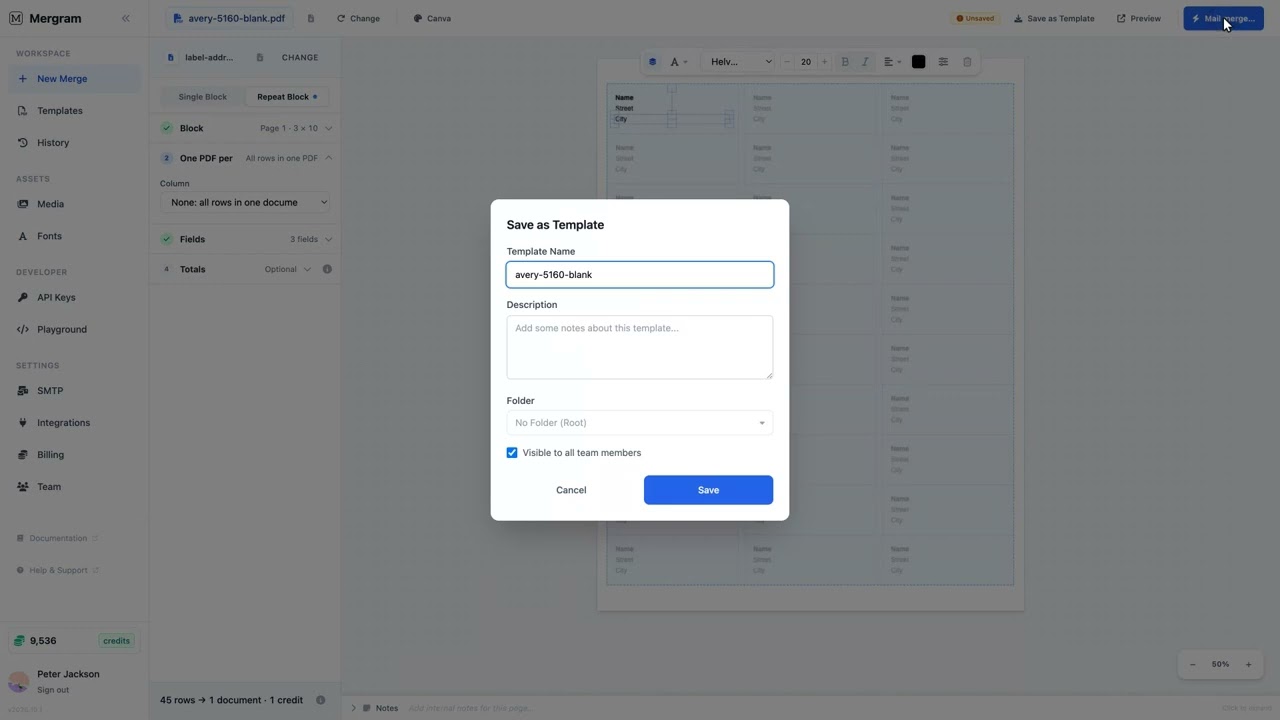
A repeat block is what puts many labels on one page. Each slot in it is one label, and each spreadsheet row fills the next slot.
- Open the Repeat Block tab in the sidebar and click Add repeat block
- Drag the block to the top-left corner of the label area, then drag its right and bottom edges out until it covers every label
- In the block’s toolbar, set Cols and Rows to your sheet’s grid, and add a horizontal gap under More settings if your labels have one
For Avery 5160 (Letter), the label area starts 0.1875” from the left and 0.5” from the top, and the grid is 3 columns × 10 rows with a 0.125” gap between columns. The toolbar shows the slot size and “30/page”.
Step 3: Design the First Label
Back in Single Block, drag columns into the first slot only:
- Name line:
FirstNameandLastNameside by side, or oneNamecolumn - Company line:
Companybelow the name - Address line:
Streeton the third line - City/State/Zip line:
City,State, andZipon the fourth line
Faded copies in the other slots preview how every label on the sheet will fill. Adjust font sizes to fit within the label area — 9–11pt works well for address labels.
Step 4: Add Barcodes for Shipping Labels
For shipping or inventory labels, add a barcode field:
- Select the TrackingNumber column from your data fields
- Change the render type from “Text” to “Barcode”
- Position the barcode below the address text
- Barcodes scale to fill the bounding box width — drag the box wider for a wider barcode. Adjust the barcode height and margin settings in the properties panel to control vertical dimensions
Printing Tips for Label Paper
Getting labels aligned correctly on pre-cut label paper requires careful print settings:
| Setting | Recommended Value | Why |
|---|---|---|
| Page scaling | None (100%) | Prevents label size distortion |
| Page margins | Minimum or none | Label paper has built-in margins |
| Orientation | Match template | Wrong orientation misaligns all labels |
| Duplex (double-sided) | Off | Label paper is single-sided |
| PDF reader | Adobe Reader | Most reliable for exact positioning |
Test on plain paper first
Before printing on expensive label paper, print the generated PDF on plain paper. Hold it up to the light against your label sheet to check alignment. Adjust field positions in the editor if needed, then reprint on label paper.
Generating the Label Sheets
In the Repeat Block tab, leave One PDF per on None: all rows in one document. Every row then goes into a single PDF:
- Each page holds one label per slot — 30 on Avery 5160
- When a sheet is full, the page repeats, so 45 addresses make one full sheet and a second sheet of 15
- Empty slots on the last sheet are left blank
- The whole PDF costs one credit, however many sheets it runs to
To print a separate sheet per group instead — one per office, or one per mailing batch — pick that column under One PDF per.
Using Filename Templates
If you merge one label per PDF instead (no repeat block), set a meaningful filename template:
| Template | Example Output |
|---|---|
Label_[[LastName]]_[[Zip]] | Label_Chen_62701.pdf |
Shipping_[[Company]]_[[State]] | Shipping_Acme Corp_IL.pdf |
Badge_[[FirstName]][[LastName]] | Badge_AliceChen.pdf |
Common Issues and Troubleshooting
Labels are misaligned on the sheet: This is almost always a print scaling issue. Ensure your PDF reader is set to “Actual Size” or “100%” — not “Fit to Page” or “Shrink to Fit.” Even a 2% scale difference shifts labels noticeably by the bottom of the page.
Text overflows the label area: Reduce the font size for the overflowing field, or abbreviate the data in your spreadsheet (e.g., “St” instead of “Street”). You can also widen the field bounding box slightly.
Barcodes scan incorrectly: Ensure the barcode bounding box is wide enough for the encoded data. Widen the bounding box or use a shorter identifier format. Increase the barcode height setting for taller bars that are easier to scan.
Blank labels in the output: Check for empty rows in your spreadsheet. Filter or remove rows with missing data before merging to avoid wasting label slots.
Get Started
Upload a blank PDF, connect your address spreadsheet, and design your label layout in the Mergram editor. Preview with real data, then generate a complete sheet of printable labels in seconds.