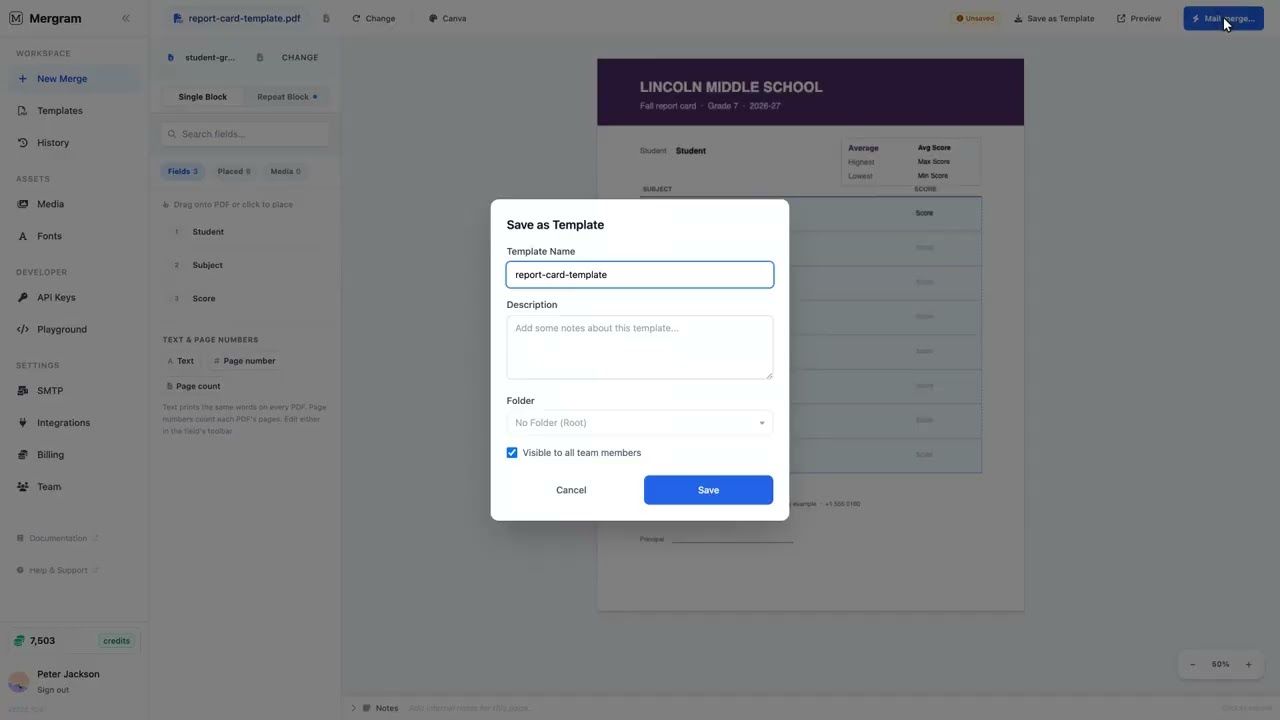
Report Card Template for Mail Merge
At the end of every term, teachers have the grades in one spreadsheet and need a report card for each student. This template turns that sheet into one PDF per student: their name and class at the top, every subject with its grade and comment in a table, and the average worked out for you.
Mergram uses a repeat block for the subjects table and grouping to make one document per student, so you never copy grades into separate files by hand.
When to Use This Template
- Primary and secondary schools — End-of-term and Christmas reports for every class
- Tutoring centres and language schools — Progress reports per learner
- Sports academies and music schools — Skill assessments with coach or teacher notes
- Training providers — Module results per trainee with an overall score
Template Fields
| Field | Description | Example | Spreadsheet Column |
|---|---|---|---|
| Student name | Printed once at the top, from the student’s first row | Saoirse Ní Bhriain | student_name |
| Class | Class or year group | 5th Class | class |
| Term | Reporting period | Christmas 2026 | term |
| Teacher | Class teacher | Mr Byrne | teacher |
| Subject | One subject per row, laid out by the repeat block | Mathematics | subject |
| Grade | Numeric grade or score | 87 | grade |
| Comment | Teacher comment for that subject | Works carefully and checks answers. | comment |
| Average | An Average field over the student’s grades | 84.5 | (calculated) |
Field Mapping Guide
- Prepare your spreadsheet — One row per student per subject. Repeat the student’s name, class, and parent email on each of their rows.
- Add a repeat block — In the Repeat Block tab, click Add repeat block and cover the subjects table. Use one column, with as many rows as there are lines in the table.
- Design one row — Drag
subject,grade, andcommentinto the first slot. Faded copies show the other rows. - Group by student — Under One PDF per, choose
student_name. The footer shows how many report cards you’ll get. - Add the average — Under Totals, pick
gradeand drag Average below the table. In its More settings, set the number of decimals. - Preview and merge — Preview the first student’s report, then merge to get one PDF per student.
Tip
Teacher comments vary in length. Select the block, open More settings, and set Height to Grow to fit text so each subject’s row is as tall as its comment.
Customization Tips
- School branding — Put your crest, colours, and signature lines in the PDF before uploading
- Custom fonts — Upload your school font in Assets → Fonts; it shows on the canvas as you design
- Unicode names — Irish fadas, accents, and non-Latin names render correctly with the built-in Unicode font fallback
- Signature on the last page — Place the principal’s signature beside the block and set Show on to Last page
- Filenames — Name each file with a template like
Report_[[class]]_[[student_name]]
Best Practices
- Keep one student name spelling — Grouping is exact and case-sensitive, so
Saoirse Ní Bhriainandsaoirse ní bhriainbecome two report cards - Use numbers for grades you want averaged — Letter grades print fine but are skipped by Average
- Test with one class first — Preview a few students before merging the whole school
- Protect reports — Add a PDF password built from a column such as the student ID when emailing reports
Get Started
Upload your report card PDF and grades sheet at Mergram, add a repeat block, and generate a report card for every student in minutes. For every setting, see repeat blocks and grouped merge.