Flyer Template for Direct Mail
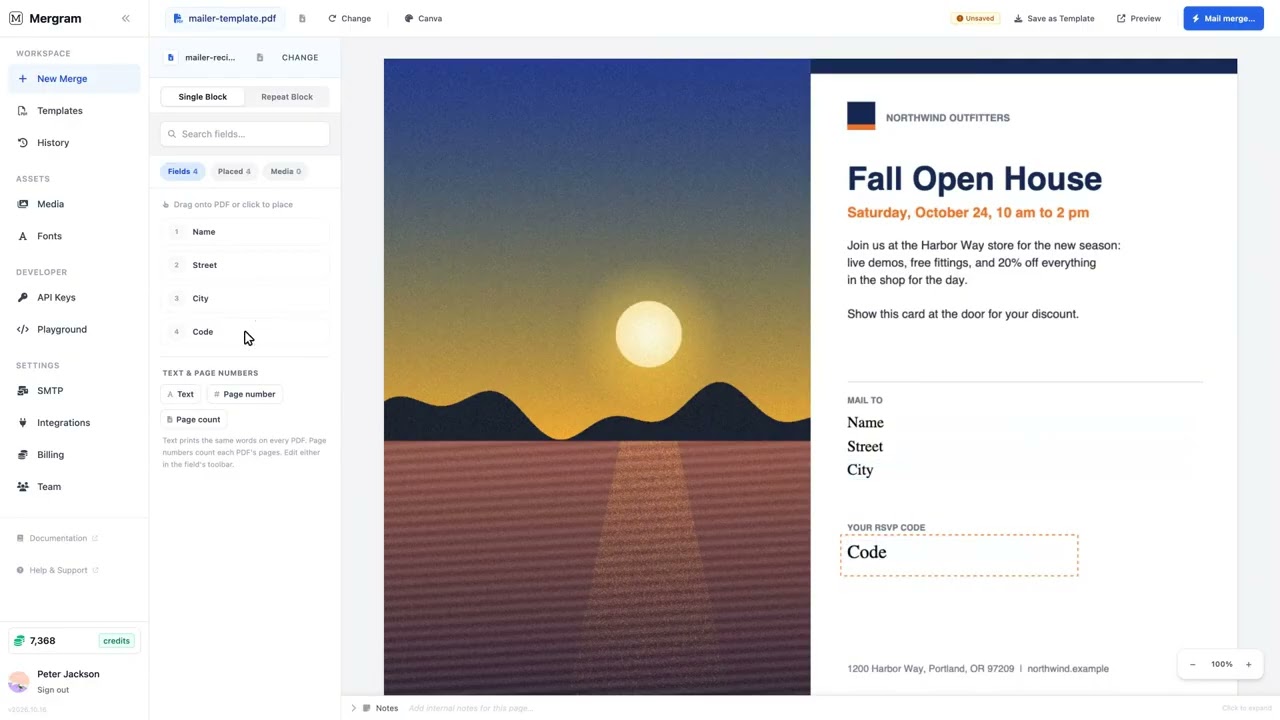
An open house, a store opening, a seasonal sale: the flyer is designed once, and the mailing list lives in a spreadsheet. This template turns the two into a mailing, with each recipient’s name, address, and personal code printed on their own copy of the flyer.
Mergram keeps your design exactly as it is and only adds the text from each row, so a flyer with a full-page photo stays a flyer with a full-page photo. Choose Single PDF at merge time and the whole mailing comes out as one file for the print shop.
When to Use This Template
- Real estate — Open house invitations and “just listed” flyers to a farm area
- Retail and restaurants — Grand openings, seasonal sales, and coupon mailers with a code per customer
- Schools and districts — Event invitations and information mailers to every household
- Nonprofits — Fundraising event flyers with a personal RSVP or donation code
- Local services — Neighbourhood mailers for gyms, salons, clinics, and trades
Template Fields
| Field | Description | Example | Spreadsheet Column |
|---|---|---|---|
| Name | Recipient name in the mailing panel | José Álvarez | name |
| Street | Street address | 72 Mission Road | street |
| City | City, state, and ZIP code on one line | San Jose, CA 95112 | city |
| Code | Personal RSVP, offer, or tracking code | OPEN-1041 | code |
Add any other columns your flyer needs, such as a salesperson’s name, an expiry date, or a QR code URL.
Field Mapping Guide
- Design the flyer — Lay it out in Canva, InDesign, Word, or any design tool, leaving a clear area for the address and code. Export it as a PDF.
- Prepare the mailing list — One row per recipient in Excel, CSV, or Google Sheets, with the address split into the columns you want to place.
- Upload both — Upload the flyer PDF and load the spreadsheet in the editor.
- Place the fields — Drag
name,street,city, andcodeonto the flyer. Set the font, size, and colour in the field toolbar. - Preview — Check the first recipient’s flyer, including the longest name and address on your list.
- Merge as one PDF — On the merge screen, choose Single PDF, check the summary, and merge. Download the file and send it to your printer.
Tip
Print shops usually want one PDF with one page per piece. If your mailing service asks for one file per recipient instead, choose separate PDFs and name each file with a template like Flyer_[[code]].
Customization Tips
- Photos stay sharp — Embed high-resolution photos (300 DPI at print size) in the flyer PDF; Mergram copies the design as it is and never re-compresses it
- A photo per recipient — Add an image field and a column of filenames to show a different property or product photo on each flyer (see image fields)
- QR codes — Turn the code column into a QR code that opens a personal landing page or RSVP form
- Brand fonts — Upload your font in Assets → Fonts so the printed name matches the rest of the design
- Conditional text — Show a line such as “Returning customer: 10% extra” only on rows that match a condition
Best Practices
- Leave room for long names — Size the name and address boxes for your longest entries, not your shortest
- Keep codes unique — A different code per row lets you count responses from the mailing
- Clean the list first — Remove duplicates and check ZIP codes before merging, since every row becomes a printed piece
- Print a proof — Print the first page at full size and check the address area against your envelope window or mailing panel
Get Started
Upload your flyer PDF and mailing list at Mergram, place the address and code, and merge the whole mailing into one PDF in minutes. For a postcard version with QR codes, see how to create mail merge postcards, and for the bigger picture, direct mail with Mergram.