What Is PDF Mail Merge from CSV?
PDF mail merge from CSV lets you use a comma-separated or tab-separated text file as the data source for generating personalized PDF documents. Each row in your CSV produces one filled-in PDF — invoices, certificates, labels, contracts, or any document type.
CSV is the universal export format — nearly every database, CRM, ERP, and spreadsheet application can export to CSV. If your data lives in Salesforce, HubSpot, Airtable, Notion, MySQL, or any system that has an “Export to CSV” button, you can merge it into PDFs with Mergram. Already working in a spreadsheet instead? The same workflow applies to Excel files — Mergram reads both formats identically.
Prerequisites
- A PDF template — an invoice, certificate, contract, label, or any PDF you want to fill with data
- A CSV or TSV file — comma-separated, semicolon-separated, or tab-separated, with headers in the first row
- A free Mergram account — sign up at mergram.com/try
How to Mail Merge from CSV
Step 1 — Upload Your PDF Template
Open the Mergram editor and upload a PDF file from your computer. You can also import a Canva design directly. Your template defines the static content — logos, headings, borders — that stays the same across all generated documents.
Step 2 — Upload Your CSV File
In the Data Source tab, drag your .csv or .tsv file into the editor. Mergram auto-detects the delimiter and reads the file:
| Delimiter | Format | Common In |
|---|---|---|
Comma (,) | Standard CSV | US/UK locales, most CRM exports |
Semicolon (;) | European CSV | Germany, France, Italy, Spain |
Tab (\t) | TSV | Database exports, terminal output |
The first row becomes column headers. Each subsequent row is one record to merge. You don’t need to specify the delimiter — Mergram detects it automatically.
File extensions
Use .csv for comma-separated or semicolon-separated files. Use .tsv for tab-separated files. Mergram handles both extensions transparently.
Step 3 — Place Data Fields
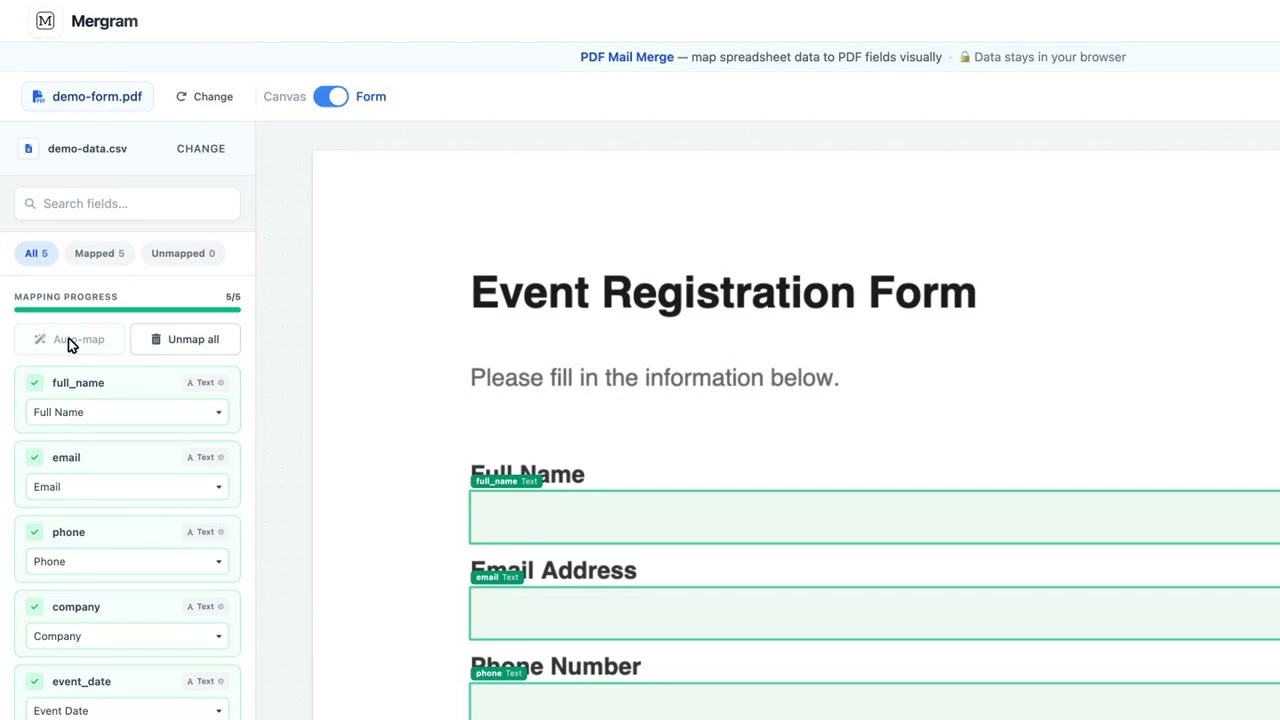
Drag column headers from the sidebar onto your PDF pages. Each column becomes a positioned field you can configure:
- Text — Names, addresses, amounts, dates, any textual value
- QR Codes — URLs, verification links, product identifiers
- Barcodes — Code 128, EAN-13, UPC-A, Code 39, ITF-14, Pharmacode
- Images — Photos, logos, signatures (matched by filename from Media Albums)
Position fields on any page, resize freely, and use snap-to-center guides for alignment.
Step 4 — Preview & Generate
Use the row selector to preview any row rendered in your browser — no server round-trip needed. When you’re satisfied:
- Individual PDFs — One file per row, packaged as ZIP download
- Combined PDF — All pages in a single document
- Email delivery — Each PDF sent as a personalized attachment via your SMTP server
Background workers handle up to 100,000 rows with progress tracking and pause/resume support.
CSV Format Details
Basic Structure
A CSV file for mail merge looks like this:
Name,Email,Amount,Due Date,Invoice Number
Alice Chen,[email protected],"$1,500.00",2025-02-15,INV-0042
Bob Martinez,[email protected],"$2,300.00",2025-02-15,INV-0043
Carla Müller,[email protected],"$980.00",2025-02-20,INV-0044
Rules:
- Row 1 — Column headers (become field names in the editor)
- Row 2+ — Data records (one row = one merged PDF)
- Quoted values — Fields containing commas must be wrapped in double quotes
- Line breaks in values — Must be wrapped in double quotes
Delimiter Auto-Detection
Mergram analyzes your file and detects the delimiter automatically:
- Comma — Standard CSV, the most common format worldwide
- Semicolon — Used in European locales where the comma is the decimal separator
- Tab — TSV format, common in database exports and terminal tools
You don’t need to configure anything — just upload the file.
Encoding Support
Mergram handles two character encodings:
| Encoding | When to Use |
|---|---|
| UTF-8 | Default for modern systems. Supports all languages and scripts. |
| Latin-1 (ISO 8859-1) | Legacy exports from older systems. Covers Western European characters. |
Character encoding
If your CSV contains accented characters (café, über, español) or non-Latin scripts (日本語, 한국어, Текст), save it as UTF-8 for best results. Most modern export tools default to UTF-8.
Common CSV Sources
CSV is the lingua franca of data exchange. Here are common sources for CSV data:
| Source | Export Method | Typical Use Case |
|---|---|---|
| Salesforce | Reports → Export Details | Client invoices, contracts |
| HubSpot | Lists → Export | Marketing letters, follow-ups |
| Airtable | View → Download CSV | Project documents, reports |
| Notion | Database → Export as CSV | Team directories, checklists |
| Google Sheets | File → Download → CSV | Same as Google Sheets integration |
| MySQL / PostgreSQL | COPY or SELECT INTO OUTFILE | Database-driven document generation |
| Shopify | Admin → Export | Packing slips, order confirmations |
| Eventbrite | Events → Export | Attendee badges, tickets |
Marketing lists: CSV to postcards and letters
Marketing teams usually start from a CSV export of a CRM or e-commerce list. Merge it into a postcard, flyer, or letter PDF with each recipient’s name, offer code, and a personal QR code, then send one combined print-ready PDF to your printer. The mail merge postcards guide walks through it end to end, and direct mail campaigns covers segmenting and tracking.
Automation with the REST API
For fully automated workflows, skip the CSV export step and send JSON data directly via the REST API. Trigger merges from Zapier, Make.com, or your own application.
CSV Preparation Tips
Cleaning Your Data
Before uploading a CSV file, check these common issues:
- Consistent headers — Ensure the first row has unique, descriptive column names
- No blank rows at the top — The first row must be headers, with no empty rows above
- Trim whitespace — Extra spaces in values can affect field rendering
- Date formatting — Use a consistent date format across all rows (e.g.,
YYYY-MM-DD) - Quoted fields — Values containing commas must be wrapped in double quotes
Handling Large CSV Exports
For large datasets:
- Mergram processes up to 100,000 rows per job — split larger files if needed
- Browser-side preview uses a single row, so file size doesn’t affect preview speed
- Bulk generation runs on background workers — you don’t need to keep the browser tab open
Converting from Other Formats
If your data isn’t already in CSV format:
- Excel → Save As → CSV (Comma delimited)
- Google Sheets → File → Download → Comma Separated Values (.csv)
- JSON → Use a tool like
jqor a spreadsheet application to flatten into tabular CSV - XML → Most tools can convert XML exports to CSV
- API output → Use the REST API to send JSON directly instead of converting to CSV
Best Practices
- Use UTF-8 encoding — Ensures all characters display correctly, especially for international data
- Keep headers simple — Use
First_NameorFirst Namerather thanFirst Name (Primary Contact) - Validate with a spreadsheet app first — Open the CSV in Excel or Google Sheets to verify the data looks correct before uploading
- Preview multiple rows — Check at least 2–3 rows in the browser preview to verify formatting
- Save your template — After placing fields, save the template so you can re-merge with updated CSV data without re-placing fields
- Use semicolons for European data — If your data uses commas as decimal separators, export with semicolons as the delimiter
Get Started
Export your data as CSV, upload it to Mergram along with a PDF template, and generate personalized documents in minutes. No format conversion needed — comma, semicolon, or tab, Mergram handles them all.
Try it free: mergram.com/try
Prefer a different data source? See PDF Mail Merge from Excel or PDF Mail Merge from Google Sheets.